
How to Set Up Instant WhatsApp Replies for New Inbound Leads in Zoho Bigin
Time to build
2 hours
Setup cost
$0
Read time
9 min read
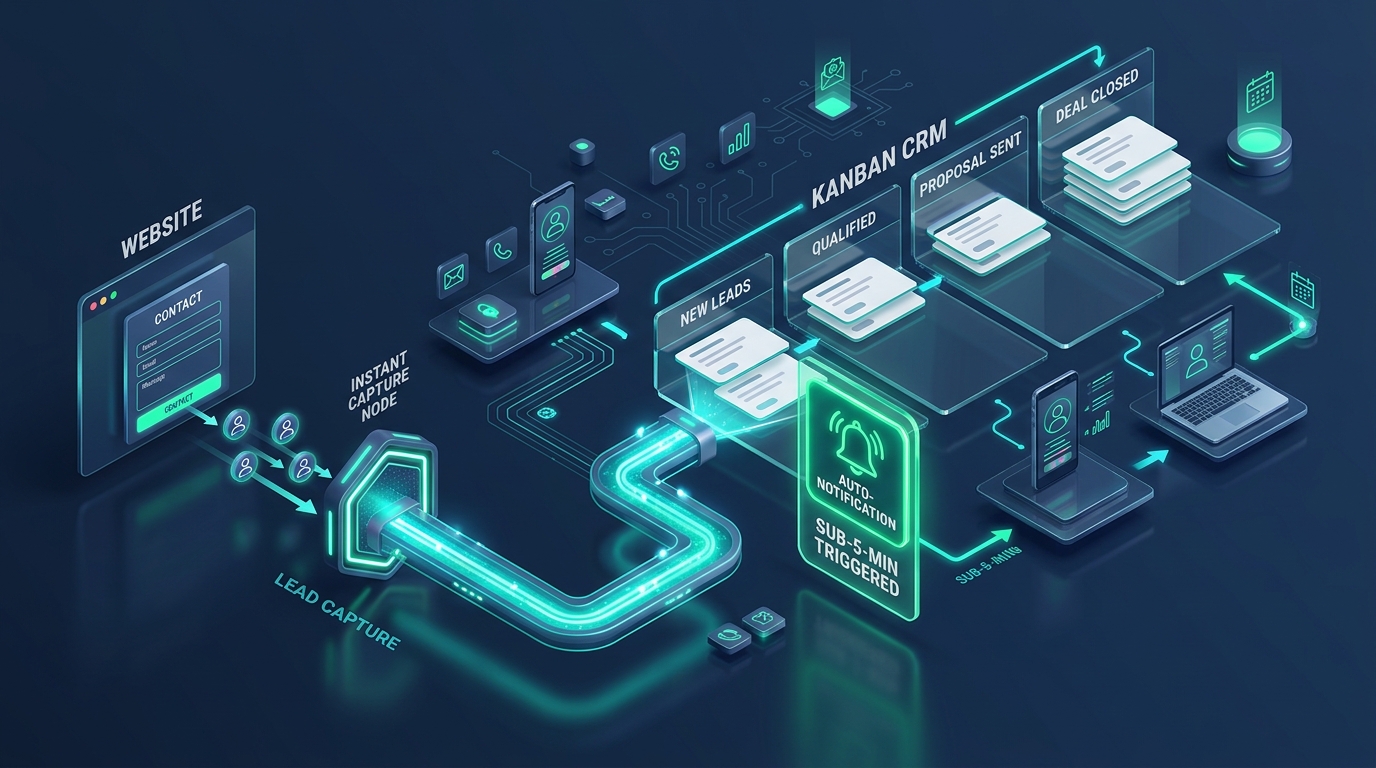
Lead Capture & CRM Routing Flow
Instant form intake, automated CRM qualification pipeline, and sub-5-minute alert triggers
The Blueprint Summary
Using Bigin Express ($7/user/mo), you can connect your WhatsApp Business number via Meta Cloud API. Inbound inquiries instantly create a CRM contact, send a pre-approved WhatsApp welcome template with your booking link, and alert your sales team on their phones.
Key Takeaways
- ✓ WhatsApp messages achieve open rates exceeding 90%, making them one of the fastest channels for first-touch lead conversion.
- ✓ Bigin Express allows direct WhatsApp messaging using pre-approved Meta message templates for business-initiated contact.
- ✓ Customer-initiated WhatsApp chats can be replied to free of charge within a 24-hour service window.
- ✓ Embedding a Bigin Booking Page link inside your WhatsApp auto-reply allows high-intent prospects to self-schedule meetings immediately.
- ✓ Scheduled escalation rules notify managers if a WhatsApp inquiry remains uncontacted for more than 60 minutes.
Before You Start
- → Upgrade to Zoho Bigin Express plan
- → Verify your Meta Business Manager account
- → Obtain a dedicated business phone number for WhatsApp
Implementation Steps
Verify your Meta Business Manager and WhatsApp phone number
Prepare your dedicated business telephone number and ensure your Meta Business Manager account is verified to access the WhatsApp Business Cloud API.
- • Ensure your Meta Business Manager account has completed business verification
- • Use a clean phone number capable of receiving an SMS or voice verification code
- • Have your business legal name, display name, and website URL ready
Free registration (standard Meta conversation fees apply)
The Catch
The phone number cannot be currently active on the regular consumer WhatsApp or WhatsApp Business mobile app. It must be dedicated to the API integration.
Connect WhatsApp inside Zoho Bigin Settings
Navigate to Channels in your Bigin Express settings and complete the guided Meta onboarding flow.
- • In Bigin, click Settings > Channels > WhatsApp
- • Click Connect WhatsApp and log in with your Facebook credentials
- • Select your Meta Business Account and assign your business telephone number
- • Confirm verification code and grant Bigin messaging permissions
Included in Bigin Express ($7/user/mo)
The Catch
You must be an administrator on both your Bigin account and your Meta Business Manager to authorize the integration.
Create and submit your first-touch message template
Draft a concise, helpful greeting template inside Meta Business Manager and submit it for review.
- • In Meta Business Suite, navigate to WhatsApp Manager > Message Templates
- • Create a Utility template: Hi {{1}}, thank you for reaching out to {{2}}. We have received your inquiry and will call you shortly
- • Add an interactive button: Schedule Call with a link to your Bigin Booking Page
- • Submit the template for Meta review (typically approved in under 15 minutes)
Included in Bigin Express
The Catch
Business-initiated WhatsApp messages must use pre-approved templates under the Utility or Marketing categories.
Build the auto-response workflow rule in Bigin
Configure an automated rule that fires the approved WhatsApp template the second an inquiry arrives.
- • In Bigin Settings > Workflows, create a new rule on Deal or Contact Creation
- • Set condition: When Lead Source equals Website or Inbound WhatsApp
- • Add action: Send WhatsApp Message using your approved greeting template
- • Map dynamic variables: customer first name, your company name, and your booking calendar URL
Included in Bigin Express
The Catch
Ensure your lead capture forms collect the international country calling code so WhatsApp messages deliver reliably.
Configure the 60-minute unattended escalation rule
Set a safety net rule that notifies the business owner if the lead is not contacted within 1 hour.
- • Add a scheduled action to your workflow rule set for 1 Hour After Created Time
- • Set condition: If Stage equals New Lead and Outreach Activity equals 0
- • Add action: Send Urgent Notification to Team Lead and mark deal priority as Overdue
- • Test the entire sequence with a sample submission to confirm end-to-end delivery
Included in Bigin Express
The Catch
Escalations only fire if team members properly log their outbound calls and messages inside the CRM.
Common Mistakes
Frequently Asked Questions
Do I have to pay Meta every time I send a WhatsApp message?
Can my sales reps chat directly with leads from Bigin?
What happens if a prospect replies to the WhatsApp template?
References
- Form Conversion Rate Benchmark Report (2025) . Chili Piper
- B2B Lead Response Times Study (2024) . RevenueHero
Email this guide to yourself
Save the link to your inbox so you can review the steps or implement the system when you're at your desk.
Check your inbox. The link is on its way.
No spam. Unsubscribe anytime.
Add us to your preferred sources to see our latest business systems, tool reviews, and RevOps guides first in your Google feed.