
Why You Are Losing Clients to Competitors Who Are Slower, Worse, and More Expensive Than You
Service businesses lose deals not because of price or quality but because competitors respond to enquiries faster. Research shows that responding within 5 minutes makes a business 21 times more likely to convert a lead than one responding after 30 minutes. A Zapier lead capture automation that replies instantly to every new enquiry costs $19.99 per month and takes 3 to 4 hours to build.
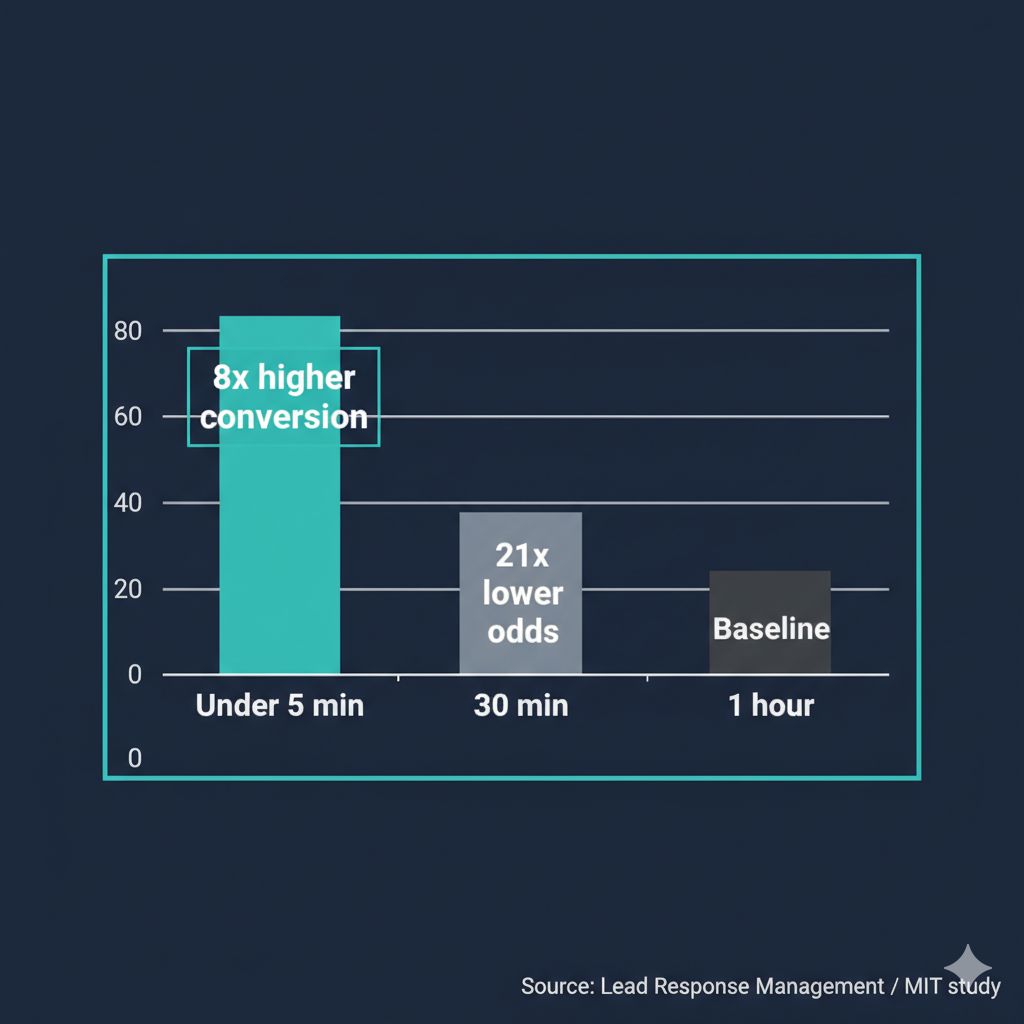
Businesses that respond to leads within 5 minutes convert at 8 times the rate of those that respond after an hour, so this single automation directly determines how many deals you close each month without any additional marketing spend.
Time to build
3 to 4 hours
Weekly savings
4 to 6 hours/week
Setup cost
$19.99/mo minimum (Zapier Starter)
Read time
9 min read

The Blueprint Summary
You are losing deals to slower, worse competitors because they have an automated lead response system and you do not. The fix is a Zapier workflow that captures every new lead and sends an instant personalised reply within 60 seconds, 24 hours a day. This guide shows you exactly how to build it in one afternoon.
3 to 5 additional closed deals per month for a business receiving 15 or more inbound leads, from the same volume of enquiries you are already getting
Key Takeaways
- ✓ The first business to respond to a new lead wins the deal more than 50 percent of the time, regardless of quality or price.
- ✓ A 5-minute response time makes you 21 times more likely to convert a lead than a 30-minute response time, according to research by Lead Response Management and MIT.
- ✓ Automated lead response does not replace your personal follow-up: it makes sure no lead decides against you while you are busy serving another client.
- ✓ You can build a complete lead capture and instant response system on Zapier Starter for $19.99 per month.
- ✓ The biggest mistake service businesses make is treating lead response as something to do when they have time, because by then, the deal is already lost.
Before You Start
- → A Zapier account (Starter plan at $19.99/mo is required for the multi-step workflow in this guide — the free plan only supports single-step automations)
- → A lead capture form already live on your website or running as a Facebook or Instagram Lead Ad (Typeform, Tally, Google Forms, and Gravity Forms all connect directly to Zapier)
- → A Gmail or Outlook email account connected to Zapier (both work on free plans)
- → A place to store your leads: a Google Sheet (free) or a HubSpot CRM account (free plan supports this guide)
- → 15 minutes to write a template instant-response email before you start Step 3 — the automation is only as good as the message it sends
Email this guide to yourself
Get the link in your inbox so you can implement it when you have time.
Check your inbox — the link is on its way.
No spam. Unsubscribe anytime.
The deal is decided before you open your laptop
A potential client fills in your contact form at 7pm on a Tuesday.
At the same time, they fill in the contact form of two or three of your competitors.
One of those competitors has an automation running.
Within 90 seconds, that competitor's system sends a reply using the client's name, acknowledging exactly what they asked about, and offering a link to book a discovery call.
You send your reply the next morning at 9am when you sit down at your desk.
By then, the client has already booked a call with your competitor, been impressed by how responsive and organised they seem, and is mentally 80 percent committed.
Your email lands in an inbox where the decision has already been made.
The research is not subtle
A study by MIT and the Harvard Business Review tracked 100,000 sales leads across multiple industries.
Companies that responded within the first hour were 7 times more likely to qualify the lead than those that waited even 60 minutes.
A separate study by Lead Response Management, one of the largest published studies of its kind, found that the odds of making contact with a lead drop by 10 times after the first 5 minutes.
After 30 minutes, responding makes you 21 times less likely to qualify that lead than the business that replied in the first 5 minutes.
This is not a marginal edge your competitor has.
This is a structural advantage that operates silently, every single day, on every enquiry you receive.
The real cost of slow lead response
Run these numbers against your own business.
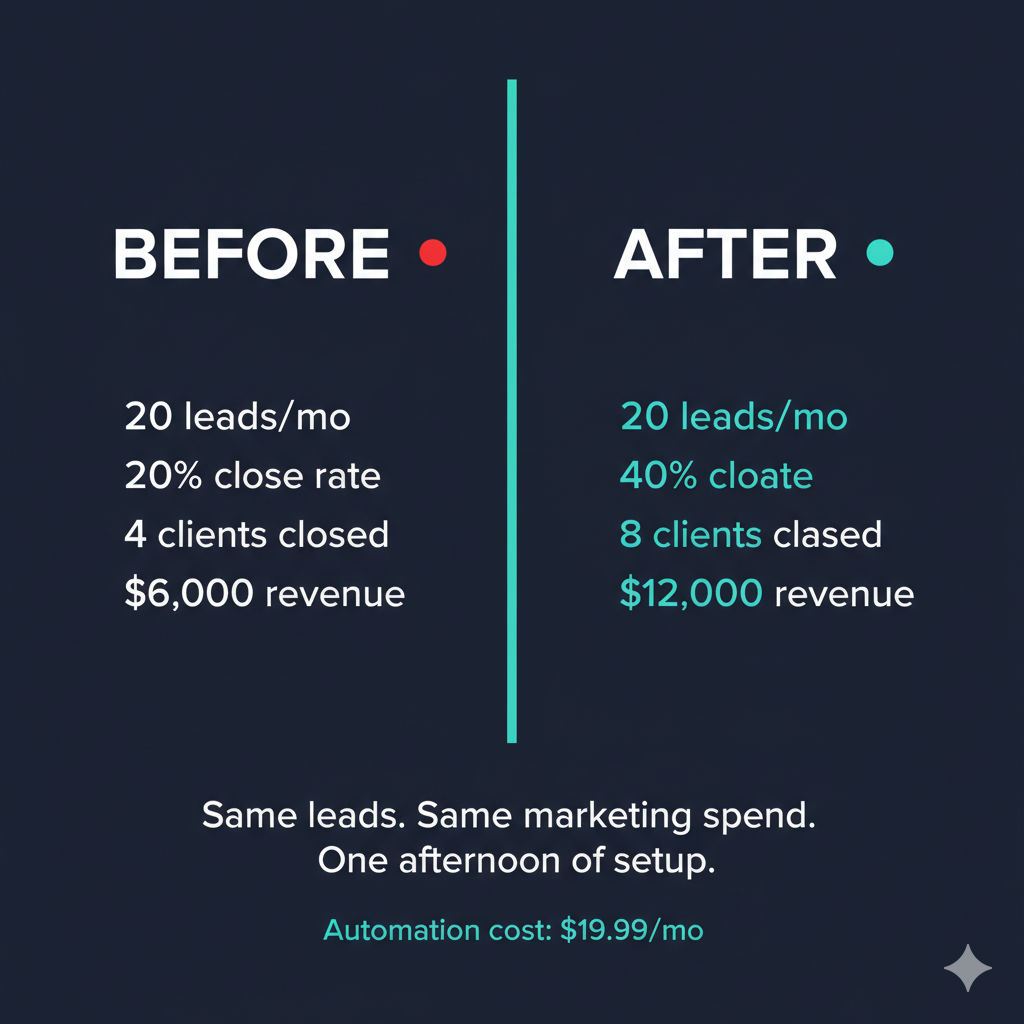
If you receive 20 enquiries per month and you currently close at a 20 percent rate, you close 4 clients per month.
Research consistently shows that cutting response time from 1 hour to under 5 minutes doubles conversion rates for service businesses in competitive markets.
That means 4 closed deals becomes 8 closed deals from the same number of leads, with zero additional marketing spend.
If your average project value is $1,500, the difference between slow and instant response is worth $6,000 per month in additional revenue.
The automation built in this guide costs $19.99 per month and takes one afternoon to set up.
What this workflow does
The workflow built in this guide captures every new lead the moment they submit a form, a lead ad, or any enquiry connected to Zapier.
It immediately sends a personalised reply that includes the client's name and references what they asked about.
It saves the lead to a tracking sheet or a CRM (a tool that organises all your client contacts in one place) so no enquiry gets lost or forgotten.
If the lead does not reply or book within 24 hours, an automated follow-up sequence starts, sending a short useful message on Day 2 and a direct check-in on Day 5.
You see every new lead in one place, in real time, with a timestamp showing exactly when they came in.
Why Zapier and not another tool
Zapier is used in this guide because it connects to virtually every lead source a service business uses: website forms, Facebook Lead Ads, Instagram, WhatsApp Business, Calendly, Typeform, and Google Forms.
It requires no coding, has a visual builder that shows you exactly what will happen before you switch anything on, and is the fastest tool for a first-time automation builder to get a working system live.
Make.com (also called Integromat) is a valid lower-cost alternative and is covered in the tools comparison table below, but it has a steeper learning curve that adds an extra hour to setup for first-time users.
When faster response will not fix the problem
If your leads are genuinely low quality, responding in 90 seconds will not turn them into clients.
If the instant reply email is generic and does not reference what the lead asked about, it will not impress anyone more than a thoughtful manual reply the next morning.
If the reason you are losing deals is your pricing, your positioning, or your service quality, speed will not save you.
This automation is specifically for businesses that are already receiving good-fit enquiries and losing them to competitors before the first real conversation happens.
What it looks like when it is working
A new lead submits your contact form at 11pm on a Saturday.
Within 90 seconds they receive a reply that uses their first name, references the specific service they asked about, and gives them a clear next step with a booking link.
You wake up Sunday morning and your lead tracker already shows the enquiry, the exact time it arrived, and whether the lead has booked a call or needs a follow-up.
You have not sent a single manual email.
You have already made a stronger first impression than any competitor who replied at 9am Monday.
Implementation Steps
Time your current lead response
Before building anything, measure exactly how long your leads currently wait before hearing from you, so you know the gap you are closing.
- • Open your email inbox and search for the last 10 enquiries you received from potential clients
- • Note the time each enquiry arrived and the time you replied
- • Calculate the average gap in hours across all 10
- • Identify the longest gap: the latest you have ever replied to a new lead
- • Write both numbers down before moving to Step 2 — this is your baseline and the number you are replacing
Free, no tool required
The Catch
Most service business owners discover their average response time is 8 to 24 hours, which feels normal to them because it matches how everyone around them operates, but is fatal to conversion rates in any market with more than one competitor.
Connect your lead source to Zapier
Create a Zap (an automated workflow in Zapier that connects two or more apps and runs whenever a trigger event happens) that fires the moment a new lead arrives.
- • Log in to your Zapier account at zapier.com and click Create Zap in the top left
- • Click the Trigger box and search for your lead source app: choose Typeform, Google Forms, Tally, Gravity Forms, or Facebook Lead Ads depending on where your enquiries come in
- • Select New Form Submission (or New Lead for Facebook and Instagram Ads) as the trigger event
- • Click Sign In to connect your form account and follow the authentication prompts
- • Click Test Trigger to pull in a real sample submission from your form
- • Confirm that the sample shows the fields you need: at minimum the lead's name, email address, and what they enquired about
Zapier Starter at $19.99/mo is required: the free plan only supports single-step Zaps and this workflow has multiple steps
The Catch
Facebook and Instagram Lead Ads require your Facebook Page to be connected to a Business Manager account before Zapier can access your leads. If your Page is not already in Business Manager, this setup step alone can take 30 to 60 minutes before you can even begin the Zap.
Ready to get started with Zapier?
Connect 8,000+ apps and kill manual data entry forever.
Try Zapier Free →Set up the 60-second automated reply
Add an action step that sends a personalised response email to every new lead the moment they submit an enquiry, using the data from their form submission.
- • Click the plus icon below the trigger to add a new action step
- • Search for and select Gmail or Outlook as the action app (both connect on free accounts)
- • Select Send Email as the action event and connect your email account
- • In the To field, click the data icon and map the email address field from your form submission data
- • In the Subject field, write: Hi [First Name] — got your message about [service topic], replacing the bracketed sections with mapped fields from your form data
- • In the Body field, write three short paragraphs: one confirming you received their message, one explaining exactly what happens next and when, and one with a direct booking link (a free Calendly account at calendly.com gives you a single booking page at no cost)
- • Click Test Action to send a test version to your own email address and confirm the personalisation fields populate correctly before turning the Zap on
Gmail or Outlook: free. Calendly single booking page: free. No additional tool cost in this step.
The Catch
The personalisation only works if your form collects the lead's first name as a separate field. If your form only has a single Name field that captures full names, Zapier will address the email using the full name including surname, which looks clunky. Fix this by adding a First Name field to your form before going live.
Log every lead to a tracking sheet or CRM
Add a second action that saves every new enquiry to a central location so no lead is ever lost, forgotten, or falls through the cracks when you are busy.
- • Click the plus icon to add another action step in the same Zap
- • Select Google Sheets as the action app (free) or HubSpot if you already use a CRM (a Customer Relationship Management tool: software that stores all your client and prospect conversations in one organised place)
- • Select Create Row (Google Sheets) or Create Contact (HubSpot free plan) as the action event
- • Connect your Google account and select the spreadsheet where you track leads, or create a new one with columns: Name, Email, Enquiry Topic, Date Received, Status
- • Map each form field to the correct column: name to Name, email to Email, enquiry message to Enquiry Topic
- • Map the Zap timestamp to the Date Received column so you know exactly when each enquiry arrived
- • Click Test Action and confirm a new row appears in your spreadsheet with the correct data
Google Sheets: free. HubSpot CRM free plan: free for up to 1 million contacts with no expiry.
The Catch
If you already have a lead tracking spreadsheet with custom column names, you will need to manually match your columns to the form fields one by one. This takes 10 to 15 minutes and is the most common step where people get stuck or give up before the Zap is live.
Add a 3-touch follow-up sequence for leads that go cold
Connect an email marketing tool to send two additional follow-up messages to any lead who receives your instant reply but does not book a call within 24 hours.
- • Add your email marketing tool as another action in the Zap: GetResponse and ConvertKit are both recommended here because they have automation sequences on their free plans
- • Select Add Subscriber or Add to List as the action event
- • Map the lead's email address and first name to the subscriber fields
- • In GetResponse or ConvertKit, create a 3-email sequence: your Day 1 instant reply is already handled by Step 3, so build Day 2 (one specific useful tip related to what they enquired about) and Day 5 (a direct short check-in asking if they still need help)
- • Set each email to send only if the lead has not yet booked a call or replied: in ConvertKit this is a Tag-based condition, in GetResponse this is a List segment condition
- • Send yourself a test run of all three emails before activating the sequence to check for formatting or personalisation issues
ConvertKit free plan supports up to 1,000 subscribers with basic automation. GetResponse free plan supports up to 500 contacts. Both include sequences on the free tier.
The Catch
Free plan automation in both tools limits the number of conditions you can set per sequence. If you want to exclude leads who have already booked a call from receiving Days 2 and 5, you may need to upgrade to a paid plan: ConvertKit Creator starts at $9/mo and GetResponse Email Marketing starts at $19/mo.
Tools That Can Run This
This guide uses Zapier. Here is how alternatives compare.
| Tool | Plan Needed | Monthly Cost | Best For | The Catch |
|---|---|---|---|---|
| Zapier | Starter | $19.99 | Most service businesses building their first automation: widest range of form, lead ad, and email integrations with a beginner-friendly visual builder | The free plan only supports single-step Zaps. This guide requires multi-step Zaps, so Starter is non-negotiable here. |
| Make.com | Free | $0 (up to 1,000 operations per month on free plan) | Businesses comfortable spending an extra hour learning a more complex interface in exchange for a lower monthly cost | Make's module-based interface is significantly more complex than Zapier for first-time users. The same workflow that takes 2 hours in Zapier typically takes 3 to 4 hours in Make if you have not used it before. |
| HubSpot | Free | $0 | Businesses that want lead tracking, CRM, and basic email automation in a single free tool without connecting multiple apps | HubSpot's free automation is limited to basic workflows triggered only by HubSpot forms. If your leads come from a third-party form or Facebook ads, you still need Zapier to capture and route them into HubSpot. |
| GetResponse | Free | $0 (up to 500 contacts) | Businesses in Africa, Southeast Asia, and Latin America that need a reliable email sequence tool with strong deliverability and affordable upgrade pricing | The free plan caps at 500 contacts. Once you exceed that limit the cheapest paid plan is $19/mo for up to 1,000 contacts. |
| ConvertKit | Free | $0 (up to 1,000 subscribers) | Service businesses and coaches who want clean, minimal email sequences with straightforward tagging to exclude leads who have already converted | ConvertKit's free plan automation is limited to one sequence per account. If you want multiple sequences for different lead types, the Creator plan starts at $9/mo. |
How to implement this if you are based in Africa, Southeast Asia, or Latin America
🌍 Africa
Zapier and Make both require payment via international card. If you do not have access to one, Chipper Cash and Geegpay both issue virtual Visa cards that work with both platforms. WhatsApp is a more common lead channel than website forms in many African markets: Zapier connects to WhatsApp Business via a third-party connector called 360dialog, which adds approximately $5 per month to the total cost of this workflow. All other steps in this guide work without modification.
🌍 Southeast Asia
Line, Zalo, and Viber are popular business communication channels in Southeast Asia but are not natively supported by Zapier as lead sources. Use a website form or Facebook Lead Ad as your primary lead capture point and connect it to Zapier to keep the workflow consistent across all steps. Facebook Lead Ads are widely used across the region and connect directly to Zapier Starter with no additional setup required.
🌍 Latin America
WhatsApp is the dominant business enquiry channel in Brazil, Mexico, and Colombia. The same 360dialog connector used for WhatsApp in Africa applies here. ConvertKit and GetResponse both accept regional payment methods including local credit cards and PayPal across most Latin American countries, so the follow-up sequence in Step 5 has no additional payment barriers in this region.
Common Mistakes
Sending a generic instant reply that does not reference what the lead actually asked about
Use your form fields to personalise the reply with at minimum the lead's first name and the specific service or topic they enquired about. A generic reply that could have been sent to anyone signals that the fast response was automated and impersonal, which cancels out the speed advantage entirely.
Building the automation but not testing it with a real form submission before going live
After you turn the Zap on, submit your own contact form from a personal email address and time exactly how long the reply takes to arrive in your inbox. If it takes more than 2 minutes, open the Zap task history in Zapier, find the failed run, and check the error message before your next real lead hits the workflow.
Skipping Step 4 (the lead tracking sheet) and relying only on the email reply in Step 3
If your instant reply goes to a spam folder or bounces due to a typo in the lead's email address, you will have no record that the enquiry ever came in. The tracking sheet is your safety net: it captures every lead regardless of what happens to the email.
Leaving the follow-up sequence running for leads who have already booked a call
A lead who books a call and then receives a Day 2 follow-up about whether they still need help will feel confused and question whether they are working with an organised business. Tag or segment booked leads immediately in your email tool and exclude them from the sequence before you activate it.
Do not want to spend 4 hours building this from scratch?
The Zapier Automation Recipe Pack includes a pre-built lead capture and instant response workflow you import in 2 minutes. Connect your form, connect your email, turn it on. The client-onboarding-system then stacks the full client journey on top of it.