
How to Automate Client Data Processing with Make (Step by Step)
Make automates client data processing by receiving structured data via webhook, filtering and routing it through conditional logic, transforming it with built-in data tools, writing results to Google Sheets, and sending a completion alert. The full workflow runs on Make Core at $10.59/mo billed annually. Setup takes 3 hours for someone new to Make.
Time to build
3 hours
Weekly savings
4 hours/week
Setup cost
$10.59/mo
Read time
10 min read

The Blueprint Summary
Build a 7-step Make scenario that receives client data via webhook, filters and routes it by type, transforms it using Make data tools, writes clean records to Google Sheets, and sends you a completion alert, all without touching it manually.
Process client data in seconds instead of hours and eliminate the manual errors that cost you client trust.
Key Takeaways
- ✓ Make Core at $10.59/mo gives you 10,000 operations per month and unlimited active scenarios
- ✓ Every module in a Make scenario counts as one operation, plan your scenario architecture before building
- ✓ Webhooks are always faster and cheaper than polling triggers, use them whenever your data source supports it
- ✓ The Router module is what separates Make from simpler tools: it lets one scenario handle multiple data types at once
- ✓ Always test with real data before setting a scenario live, Make sample data does not replicate edge cases
Before You Start
- → A Make account, free to create at make.com, you will upgrade to Core at $10.59/mo when you need unlimited scenarios
- → A Google Sheets spreadsheet set up with the column headers you want your processed data to land in
- → A webhook URL from Make, generated when you add a Webhooks module as your trigger
- → A clear map of the data fields you expect to receive and what transformation each field needs
- → A Gmail or Slack account for the completion alert in Step 6
Email this guide to yourself
Get the link in your inbox so you can implement it when you have time.
Check your inbox — the link is on its way.
No spam. Unsubscribe anytime.
Why manual data processing is a hidden tax on your business
Every time you copy a client record from a form notification into a spreadsheet, you spend 3 to 5 minutes on a task that produces no revenue.
At 20 new client records per week, that is between 60 and 100 minutes of manual copy-pasting every week.
Over a year that is between 52 and 87 hours of data entry: time that could have gone to client work, sales, or sleep.
The hidden cost is worse than the time: manual data entry produces inconsistent formatting, missing fields, duplicates, and capitalisation errors that corrupt every report and analysis you run downstream.
A spreadsheet full of dirty records is not a database, it is a liability.
Why Make is the right tool for data processing
Make handles data processing workflows that Zapier cannot run at all.
The key difference is the Iterator and Router modules: Make can loop over an array of records and process each one individually inside a single scenario run, while Zapier requires a separate Zap run for each record.
Make also applies data transformation functions natively: formatDate(), capitalize(), replace(), and emptystring() are built into the module interface without requiring a separate formatting step or a paid add-on.
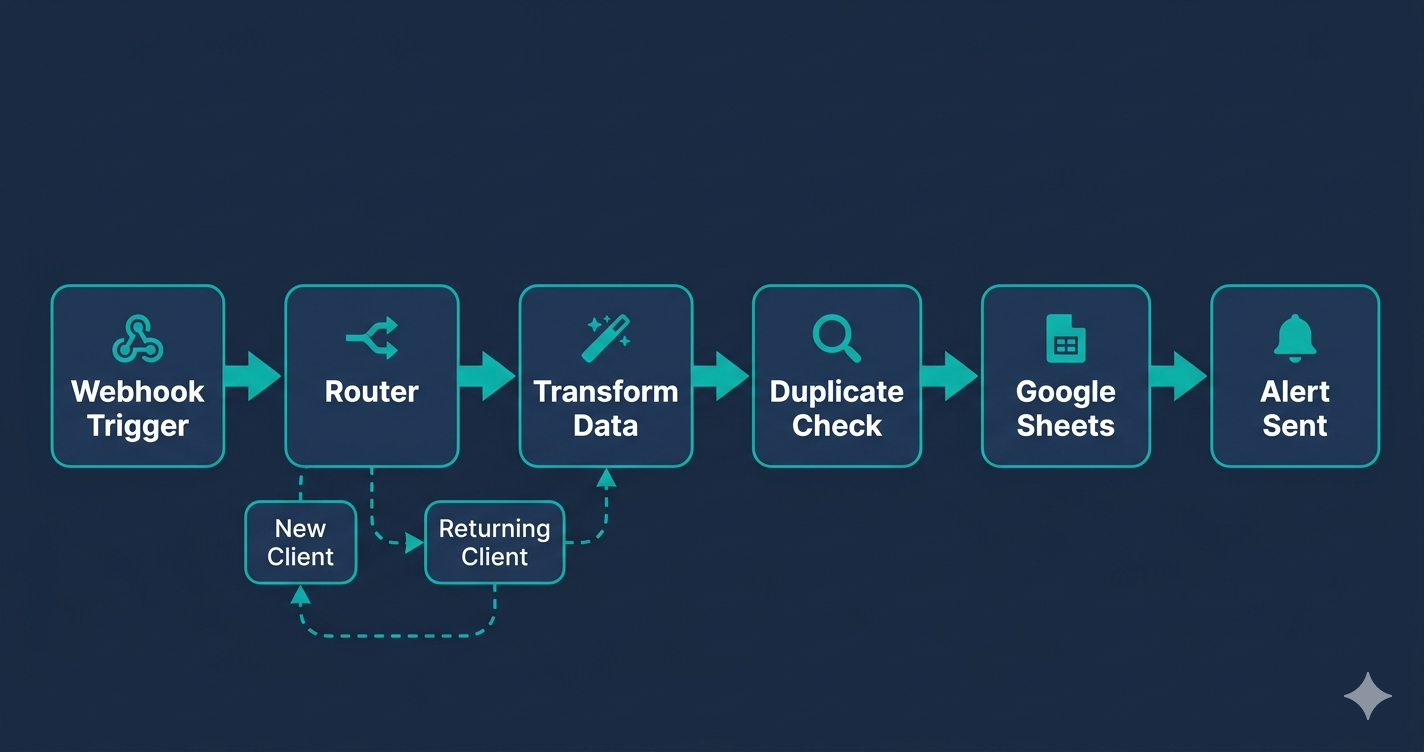
The Router module lets one scenario branch into multiple processing paths based on the data type, so a single scenario can handle new clients, returning clients, and support requests without duplicating logic across three separate workflows.
Make Core costs $10.59/mo billed annually, which is roughly half the price of Zapier Professional for the same monthly automation volume.
How Make counts operations
Every module in a Make scenario consumes one operation per run.
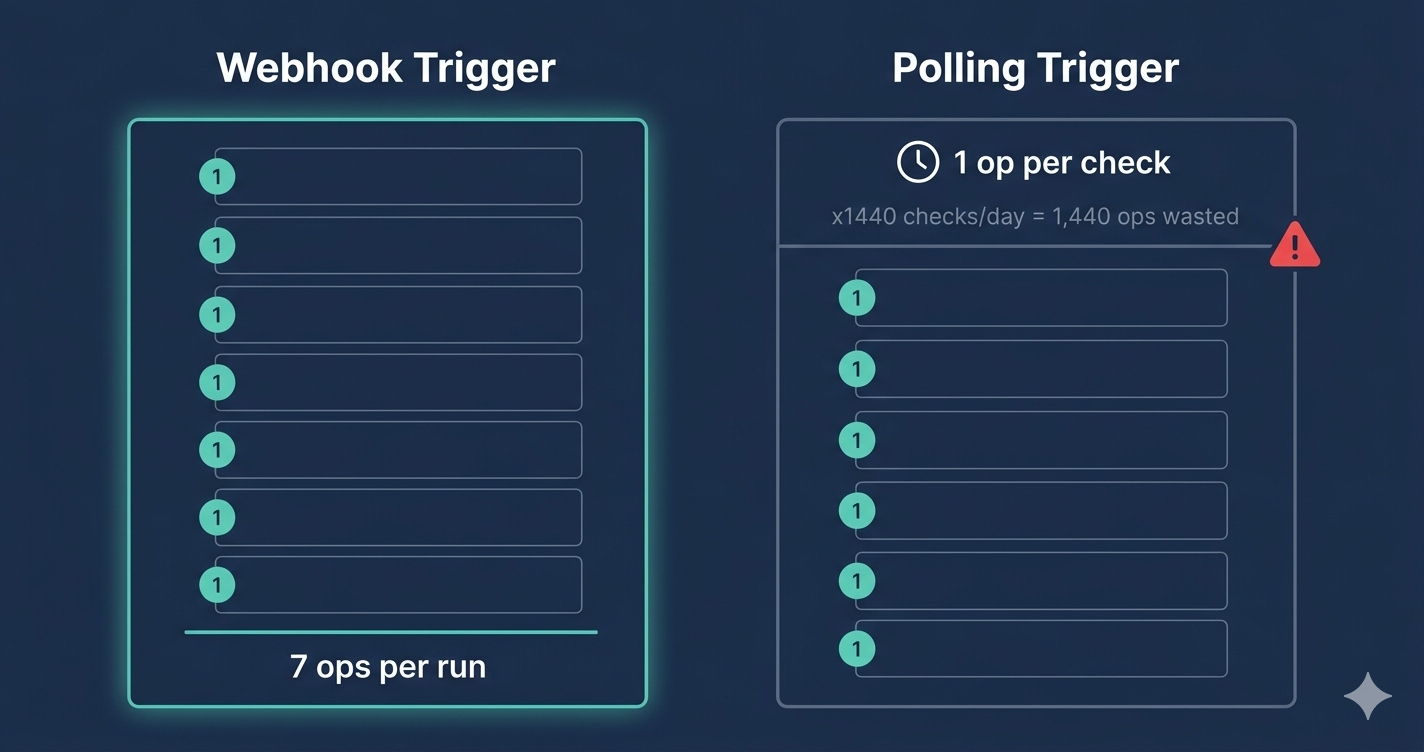
A scenario with 7 modules uses 7 operations every time it fires.
Processing 100 records per month with a 7-module scenario uses 700 operations per month.
The Make Core plan includes 10,000 operations per month, which covers approximately 1,400 records on this scenario before needing a plan upgrade.
Polling triggers consume one operation per interval check whether or not new data exists.
A polling trigger set to run every minute burns 1,440 operations per day on polling alone, even when your data source sends nothing.
Use webhook triggers wherever your data source supports them: webhooks consume zero operations when idle and fire instantly when data arrives.
What this scenario does
This guide builds a 7-step Make scenario that receives incoming client data via webhook the moment it is submitted.
The Router in Step 2 directs new clients, returning clients, and support requests down separate processing paths without duplicating the scenario.
Step 3 cleans and transforms every field: names are capitalised, dates are reformatted, phone numbers are stripped of inconsistent characters, and null values are replaced with empty strings.
Step 5 runs a duplicate check before writing anything, so the same client never generates two rows in your spreadsheet.
Step 6 sends you a confirmation alert after each successful write so you always know the data landed correctly.
When NOT to use Make for data processing
Do not use Make if your data source sends fewer than 50 records per month.
At very low volume, a simple Zapier workflow or even a manual import is faster to set up and costs less.
Do not use Make if your data source does not support outgoing webhooks or API calls.
If your only option is a polling trigger checking every 15 minutes on the free plan, you will burn through your operation allowance on polling checks and have nothing left for actual processing.
In that case, either upgrade to Core for 1-minute polling or switch to Zapier, which does not count trigger checks as tasks.
What good looks like when this is running
A client submits a form and within 3 seconds a clean, correctly formatted row appears in your Google Sheet with all fields mapped, a timestamp, and a record type tag.
Your completion alert arrives in Gmail or Slack with the processed record details so you can verify without opening the spreadsheet.
Your Make execution history shows every scenario run as green with no errors.
Your spreadsheet has zero duplicates because the Search Rows check in Step 5 catches every returning submission before it becomes a second row.
You open your spreadsheet at the end of the week and every record is clean, consistently formatted, and ready to filter, sort, or export without any manual cleanup.
Planning your scenario architecture before you build
The most common mistake when building a data processing scenario in Make is starting in the builder before planning the module sequence on paper.
A scenario that processes 3 different record types with 2 destination outputs has at minimum 8 to 10 modules.
At 8 modules per run and 200 records per month, that is 1,600 operations per month, comfortably within Make Core's 10,000 allowance.
At 8 modules per run and 2,000 records per month, that is 16,000 operations, which exceeds Core and requires a higher credit tier at $18.82/mo on Make Pro.
Estimate your monthly record volume before building and choose your plan accordingly.
If you are unsure of your volume, start on the Make free plan, monitor the operations counter in your Make dashboard for the first 2 weeks, and upgrade only when the counter approaches 800 operations.
The difference between raw data and clean data
Every client form, CRM export, or payment webhook sends data in the format that is convenient for the sending system, not the format that is useful for your destination.
Phone numbers arrive as +254 712 345 678, 0712345678, and 254-712-345-678 from three different clients filling in the same form.
Names arrive as JOHN DOE, john doe, and John Doe from the same form on the same day.
Dates arrive as 22/03/2026, March 22 2026, and 2026-03-22T09:00:00Z from three different sources.
Make's transformation functions in Step 3 of this guide normalise all of these variations into a consistent format before they ever touch your destination spreadsheet.
A clean database is one where every record was transformed at the point of entry, not one where you clean records manually once a quarter.
Implementation Steps
Set up a webhook trigger to receive incoming client data
Create a Make webhook URL that your data source posts to, so the scenario fires the moment new client data arrives instead of polling on a schedule.
- • Log in to Make and click Create a new scenario
- • Click the empty trigger circle and search for Webhooks
- • Select Custom webhook and click Add
- • Name the webhook Client Data Intake and click Save
- • Copy the generated webhook URL and paste it into your data source (form tool, CRM, or payment processor) as the outgoing webhook destination
- • Send a test payload from your data source and click Determine data structure in Make to parse the incoming fields
Make Free plan supports webhooks. No cost for the webhook module itself. Make Core at $10.59/mo billed annually is required when you need more than 2 active scenarios.
The Catch
Make cannot determine the data structure until it receives at least one real payload from your source. Do not skip the test payload step. Without it, Make has no field names to map in later modules and you will have to rebuild the field mapping from scratch after adding the first real record.
Add a Router to direct different data types to separate processing paths
Insert a Router module after the webhook so Make can send new clients, returning clients, and support requests down separate paths without duplicating the scenario.
- • Click the + icon after the webhook module and add a Router module
- • Click on the first route connector and add a Filter
- • Set the filter condition: the data field that identifies record type (e.g., form_type or record_type) equals new_client
- • Click the second route connector, add another Filter, and set it to the value returning_client
- • Add a third route if you have a third data type such as support_request
- • Label each route in the module settings so the scenario is readable when you return to it later
Router and Filter modules are included in all Make plans including Free. Each filter evaluation counts as one operation per scenario run.
The Catch
Without a router, every record triggers every action in the scenario regardless of type, which means new clients get treated as returning clients and support requests get logged as leads. The router is not optional if your incoming data contains more than one record type.
Transform and clean the incoming data fields
Use Make built-in data transformation functions to reformat dates, standardise phone numbers, capitalise names, and strip whitespace before any record touches your destination.
- • After each Router path, add a Make Tools Set variable module
- • In the variable fields, apply text functions to name fields: use the capitalize() function on first_name and last_name
- • Apply the formatDate() function to any date field, set the output format to YYYY-MM-DD
- • Apply the replace() function to phone fields to strip spaces, dashes, and parentheses from the raw input
- • Use the emptystring() function to replace any null or undefined optional fields with a blank string rather than the word null
- • Run the scenario once using your test webhook payload and inspect the Set variable output to confirm each transformation produces the expected result
Set variable and Tools modules are included in all Make plans. Each module in the scenario counts as one operation per run.
The Catch
Make's formatDate() function requires you to specify the input date format that your source sends, not just the output format you want. If your form sends dates as MM/DD/YYYY and you do not specify that in the input format argument, Make returns an empty value instead of a formatted date and the field arrives blank in your destination.
Ready to get started with Make?
Visual automation canvas that handles complex workflows Zapier simply cannot.
Try Make Free →Write the cleaned record to Google Sheets
Add an Add a Row module that writes the transformed client data to the correct columns in your Google Sheet, one clean record per scenario run.
- • Add a Google Sheets Add a Row module on each Router path after the Set variable module
- • Click Connect and authorise your Google account
- • Select your spreadsheet and the specific sheet tab you want to write to
- • Map each sheet column to the corresponding transformed variable from Step 3 (not the raw webhook fields)
- • Add a Timestamp column and map it to the Make built-in now() function formatted as YYYY-MM-DD HH:mm
- • Run the scenario with your test payload and verify the row appears in the sheet with all fields correctly mapped
Google Sheets is free. The Google Sheets module is included in all Make plans. Each Add a Row action counts as one operation.
The Catch
Make maps Google Sheets columns by name, not by position. If you rename or reorder columns in your Sheet after building the scenario, the mapping silently breaks and data lands in the wrong columns or fails to write. Lock your column headers before building this step and do not rename them after going live.
Search for an existing record before creating a duplicate
Add a Search Rows module before the Add a Row step to check if this client already exists in your Sheet, so the same person never generates two rows.
- • Insert a Google Sheets Search Rows module before the Add a Row module on each path
- • Set the search column to Email and map it to the transformed email field from Step 3
- • Add a Filter after the Search Rows module: only continue if the number of results equals zero
- • Move the Add a Row module to after this filter so it only fires when no existing record is found
- • Add a separate Google Sheets Update a Row module on the other branch for when a match is found, and map the record ID to the matched row
- • Test with an email address that already exists in your Sheet and confirm the scenario updates rather than duplicates
Included in all Make plans. Search Rows counts as one operation. The filter evaluation counts as one additional operation per run.
The Catch
This step adds two operations per scenario run. On the Make Free plan with 1,000 operations per month, a 7-module scenario running 100 times per month uses 700 operations. If you receive more than 140 records per month, you will need Make Core at $10.59/mo before going live with this step active.
Send a completion alert with a summary of what was processed
Add a Gmail or Slack notification module at the end of each Router path so you receive a confirmation every time a client record is successfully processed and written.
- • Add a Gmail Send an email module or Slack Send a message module at the end of each Router path
- • Set the recipient to your internal inbox or a dedicated Slack channel
- • Build the message body: Record type: [record_type] | Name: [first_name] [last_name] | Email: [email] | Processed at: [timestamp]
- • Map each bracket field from the Set variable output in Step 3
- • Set the subject line or Slack message header to: New client record processed
- • Run the full scenario end-to-end with your test payload and confirm the alert arrives with the correct data
Gmail is free. Slack Free plan supports outgoing Make messages. Each notification module counts as one operation per run.
The Catch
If you put the notification at the very beginning of the scenario instead of the end, you receive an alert even when the Google Sheets write fails. Always place the notification as the last module in each route path so it only fires after every upstream step has completed successfully.
Set the scheduling interval and turn the scenario on
Configure how frequently Make checks for new data and activate the scenario for live use.
- • Click the clock icon in the bottom-left of the scenario builder
- • If using a webhook trigger, scheduling is automatic: the scenario fires instantly on each incoming payload, no interval needed
- • If using a polling trigger instead of a webhook, set the interval to the minimum supported by your plan: 1 minute on Core, 15 minutes on Free
- • Click Save in the top right to save the complete scenario
- • Toggle the scenario status from Off to On using the toggle switch at the bottom of the builder
- • Send one final real payload from your data source and confirm the full chain fires correctly in Make execution history
Webhook-triggered scenarios run on demand and do not consume operations when idle. Polling triggers consume one operation per interval check regardless of whether new data exists. Use webhooks wherever possible to preserve your monthly operation allowance.
The Catch
On the Make Free plan, the minimum polling interval is 15 minutes. If your workflow needs near-real-time processing, you must use a webhook trigger (available on all plans) or upgrade to Make Core for 1-minute polling. A client waiting 15 minutes for their data to be processed is not the same as a client whose data processes in seconds.
Tools That Can Run This
This guide uses Make. Here is how alternatives compare.
| Tool | Plan Needed | Monthly Cost | Best For | The Catch |
|---|---|---|---|---|
| Make | Core | $10.59 | Complex multi-branch data processing with filtering, routing, and transformation in one scenario | Each module action counts as one operation. A 6-module scenario processing 500 records per day uses 3,000 operations daily. Plan your architecture before building. |
| Zapier | Professional | $19.99 | Simple linear data flows where speed of setup matters more than branching logic | Zapier cannot loop over arrays or iterate through multiple records in one Zap run. For batch data processing, Make is the correct tool. |
| n8n | Self-hosted (free) or Cloud Starter at $20/mo | $0 to $20 | Technical users who need unlimited operations and custom code execution | Self-hosted requires server setup. Code nodes require basic JavaScript. Not practical for non-technical users building their first data processing workflow. |
Implementation notes for global businesses
🌍 Africa
Make Core billing requires an international Visa or Mastercard. Chipper Cash and Geegpay both issue virtual Visa cards that work for Make billing. The Make free plan (1,000 operations/mo) requires no payment information at all and is enough to test this full scenario before committing. Google Sheets and Gmail are free and work without restriction across Africa. For webhook data sources, WhatsApp Business API via a provider like Twilio or Bird is the most common data input for client interactions in many African markets; both send structured webhooks that Make receives cleanly.
🌍 Latin America
Make Core billing requires a Visa or Mastercard. Wise and Payoneer virtual cards work for Make billing if your primary card is local. Google Sheets, Gmail, and Slack all work without restriction. The webhook trigger in Step 1 works with any payment processor that sends outgoing webhooks, including Conekta (Mexico), PayU (Colombia, Peru, Chile), and Mercado Pago, making this data processing scenario compatible with the most common Latin American payment tools without any modifications.
🌍 Southeast Asia
Make Core billing works with any Visa or Mastercard issued by local banks across Southeast Asia. All tools in this scenario (Google Sheets, Gmail, Slack) work without restriction. For businesses using Line OA or Lazada as client data sources, both platforms support outgoing webhooks or have Make integrations that feed directly into the webhook trigger in Step 1.
Common Mistakes
Using a polling trigger instead of a webhook for real-time data
Switch your trigger to Webhooks Custom webhook. Webhooks fire instantly when data arrives and consume zero operations when idle. Polling triggers consume one operation per interval check whether or not new data exists, which burns through your monthly allowance rapidly.
Mapping raw webhook fields directly to Google Sheets instead of using transformed variables
Always pass incoming fields through a Set variable or Tools module first. Raw webhook data contains inconsistent capitalisation, unformatted dates, and null values. Writing raw data directly to your destination means your spreadsheet is dirty from day one.
Skipping the duplicate check in Step 5
Without Search Rows before Add a Row, every re-submission from the same client creates a new record. Add the search and filter combination in Step 5 before your scenario processes more than 10 records, not after you have 200 duplicates to clean up.
Renaming Google Sheets columns after the scenario is live
Make maps columns by name. Renaming a column breaks the mapping silently. The scenario continues to run and reports success in execution history while writing nothing to the renamed column. Lock your column headers before going live and treat them as immutable.
Do not want to build this yourself?
The Business Automation Starter Checklist walks you through the exact pre-build planning steps that cut Make scenario setup time by half.